
The essential
Available for users who have the users management right, the users section allows to manage subscription, rights and information on users.
Click on the Users section to go to the users management interface.
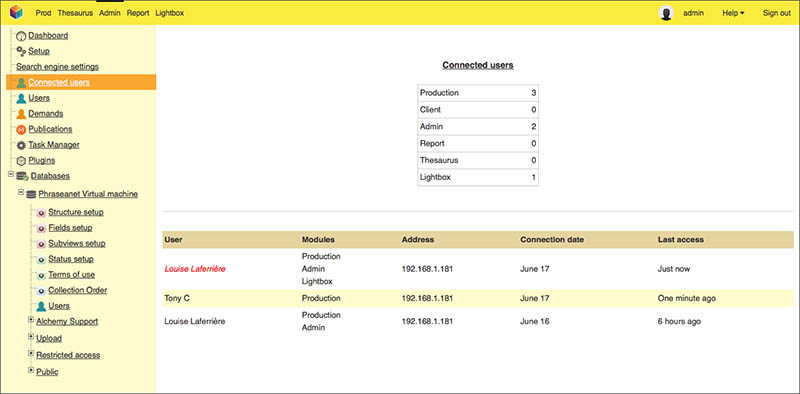
In Phraseanet, if a user does not see a function or section, it is because he does not have the required access rights. Also, it is not possible for a user to give more rights than he has himself.
Note
An user who have no allocated rights is a ghost user. He is recognizable by a ghost icon in the users list.

See also
Note
For users created via the users management interface, the email address is used as unique identifier.
It is possible to sort users list by criteria such as the identifier, the name/first name, email, country or company.
The Users with an API application checkbox restricts the list to users owning at least one API application.
User templates allows to apply the same rights on one or several users. In the users list, a template is indicated with an M icon.

Note
Templates belong to user who created it. Template will not be visible or usable by the other administrators.
It is possible to apply templates to one or more users.
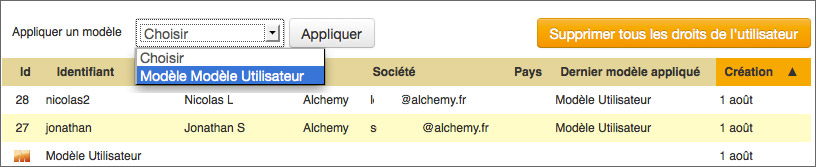
An alert window allows to choose a rule to apply :
A guest access can be setup in Phraseanet, if needed. It allows to give access to media to persons not registered in the system.
To set up the guest access:
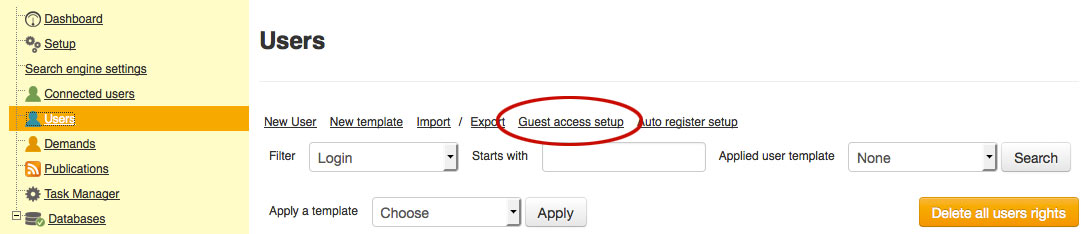
As a right is activated, the Guest access button is displayed on the login page of Phraseaenet.
Rights editing concerns users as well as templates. To display the rights edition form of a user or of a template, double click on its names. The rights form allows viewing and managing rights per available Phraseanet bases and collections. Rights are granted when the corresponding boxes are checked.
For users, the Info tab gives access to the user’s information.
Note
The modification of the user’s rights can be made in batches by selecting several users.
When editing by batch, a grayed box indicates that the right is at least granted to one of the selected users. A user cannot give more rights than he has himself : a red dot indicates that it is impossible to give rights.
The i icon indicates a secondary form. Click on it to display this subsidiary form.
Headers on the columns are clickable. They allow to check or un-check the boxes on all the collections of a Phraseanet base.
The first and leftmost part of the rights window:
Other restrictive options exist:
Quota allows to define download limits per base or per collection. Click on the Quotas icon to set these limits.
Date expiration allows to set a time limit for user’s access to a Phraseanet base or collection.
Limitation through status allows to hide records for users according to the state of one or several status.
Note
Refer to the settings of the base for creation and management of status bits.
Click on the statuses icon to set the access restrictions to the records.
The left part of the rights form form regroups exploitation and the managing rights on documents and on Phrasesanet bases and collections.
Management rights are additional upon each other. They give access on Phraseanet bases and collections setup.
Note
To use Bridge user must have Publications and Push rights activated.
Since Phraseanet 4.2, creating API applications and keys requires the API access right, granted on a per-user basis.
/developers/...) is denied
(HTTP 403): the user can neither create, view nor edit an API application,
nor get a developer token.The change is saved immediately, there is no need to validate the form.
Note
The API access right belongs to each user: it is not a per-collection right and it is not copied when applying a user template. A new user has no API access by default.
The API tab also shows:
To avoid locking anyone out when upgrading to Phraseanet 4.2, the upgrade patch automatically grants the API access right to:
The list of granted accounts is written to the application logs (lines
prefixed with [patch 4.2.0 / API access]). Review it after the upgrade
and revoke access for accounts that no longer need it.
The Demands section lists the subscription requests made through available forms.
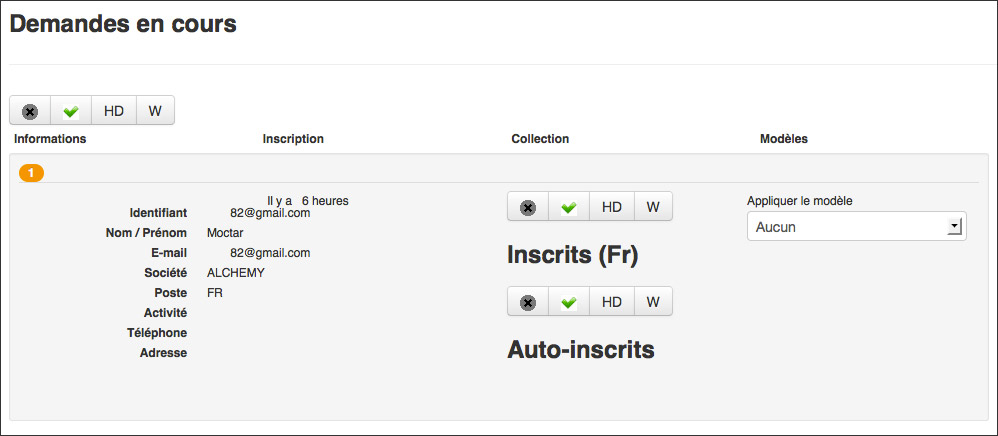
The subscriptions are made on collections and there are as many lines than collections access requests.
A rollover on the name allows to display the information related to the applicant.
Select the rights to allocate per collections by clicking on icons.
The possible choices are:
Click on Validate to apply the selected choices.
The other option to accept a subscription request consists in applying a user template.